
We’re thrilled to introduce our new portal, designed to make working together easier and more efficient than ever. With MyNetmedia, you’ll have everything you need to connect with our team and manage your content in one central, easy-to-use place.
ⓘ Approval Request Notifications
Don’t worry—we’ll continue to send you notifications when there’s something to review. No need to check the portal every 5 minutes!
Login
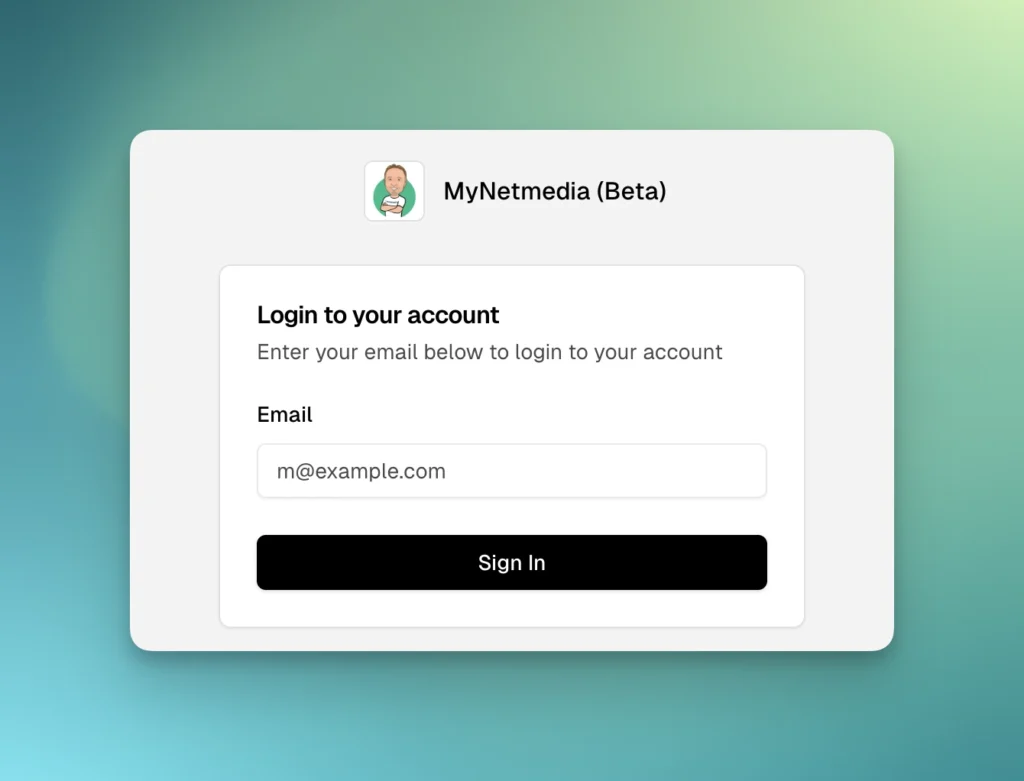
Logging in to MyNetmedia is easy! Simply go to mynetmedia.co.uk and enter your email address and you’ll receive a magic link in your inbox. If you don’t see it right away, check your Spam folder or Updates tab.
The email containing the magic link should look something like this.
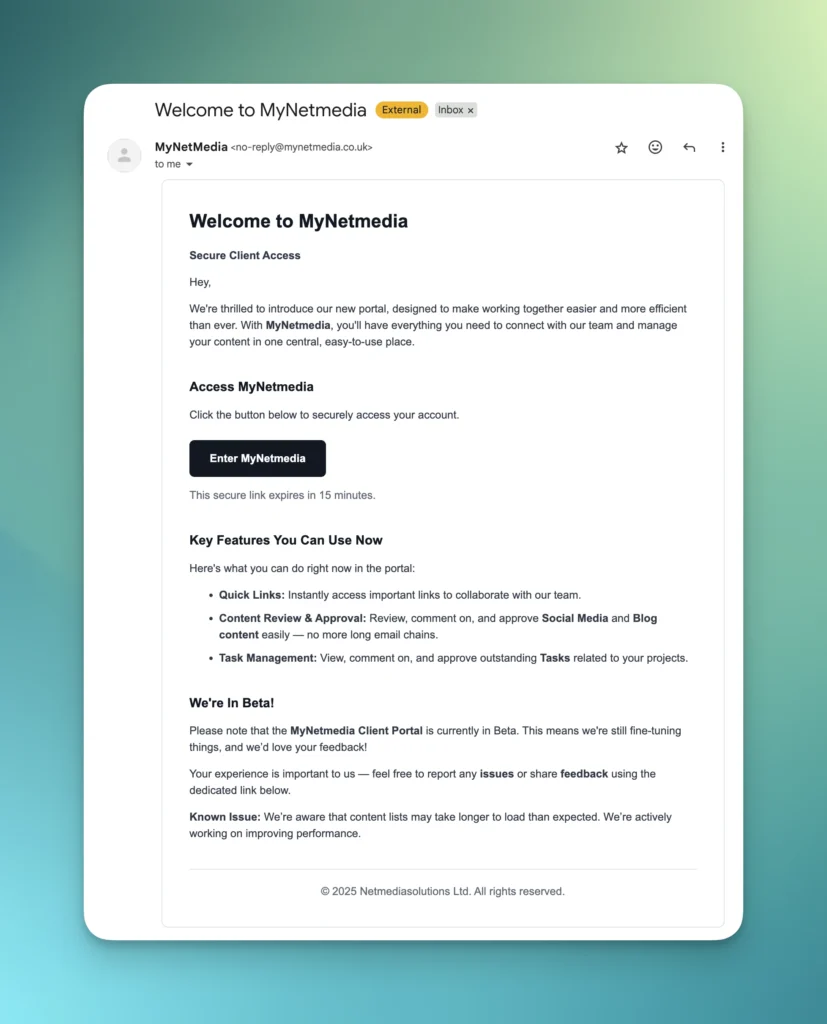
Just click the “Enter MyNetmedia” button and you’ll be logged in right away!
If you encounter an error, wait a minute and try clicking the button again from your email. If that doesn’t work, return to the login page and request a new magic link. Keep in mind that magic links expire after 30 minutes.
ⓘ Need assistance?
Send us an email at [email protected]
What To Expect
Heads Up: MyNetmedia is in Beta!
Please note that the MyNetmedia Client Portal is currently in Beta. This means we’re still fine-tuning things, and we need your help! Your experience is important to us, so please feel free to report any issues you encounter or provide any feedback you have.
Known Issues: We know it takes longer than expected to see your content in a list. We are working on it!
Here’s a look at what you can do right now in the portal:
- Quick Links: Instantly access important links to collaborate with our team such as your ticket request form, referral link, and more!
- Content Review & Approval: Review, leave comments on, and approve Social Media and Blog content with ease. Say goodbye to endless email chains!
- Task Management: Review, comment on, and approve outstanding Tasks related to your projects.
MyNetmedia Tabs
When you log in, you will immediately be greeted by the Home tab.
Home tab
This is currently set up to help with your onboarding into the portal so expect to see quick start guides and some key information. Besides this, you also get access to:
- Quick Links
- Feature Requests/Concerns
- Upcoming Features List
Social Media tab
You’ll find the Social Media tab just below the Home tab (in the left panel on desktop or within the burger menu in the upper left corner on mobile).
This tab displays all social media content awaiting your approval. By default, content appears in a gallery layout sorted by publish date, but you can switch to list view anytime.
You’ll see information like post type and publish date at a glance. Click the “View Details” button to open the content and see everything else—the caption, platforms we’ll post to, and more. Note that videos and PDFs won’t show a preview in the gallery view, only images will.
ⓘ Approving or Providing Feedback
First, open the content by clicking the “View Details” button or the box itself containing the title.
- Add a comment in the comments section. If you don’t see it right away, just scroll down. Make sure to post your comment by clicking on the “Post Comment” button.
- To update the status to Approved, For Revisions, or Rejected, click the “Edit” button in the upper right corner, next to the close (“X”) button. Make sure to save your updates by clicking on the “Save” button.
We highly encourage you to leave specific comments, especially if you’re marking content for revisions or rejection. This helps us understand exactly what needs to be changed.
Blogs tab
The Blogs tab is located in the same place as the Social Media tab—just below the Home tab on the left panel (or in the burger menu on mobile).
Here you’ll find all blog posts pending your approval, organised by publish date. The approval process works exactly the same way as with social media content—simply open the blog post and follow the exact same steps to approve or request changes.
ⓘ Approving or Providing Feedback
First, open the content by clicking the “View Details” button or the box itself containing the title.
- Add a comment in the comments section. If you don’t see it right away, just scroll down. Make sure to post your comment by clicking on the “Post Comment” button.
- To update the status to Approved, For Revisions, or Rejected, click the “Edit” button in the upper right corner, next to the close (“X”) button. Make sure to save your updates by clicking on the “Save” button.
We highly encourage you to leave specific comments, especially if you’re marking content for revisions or rejection. This helps us understand exactly what needs to be changed.
Tasks tab
The Tasks tab is in the same location as the other tabs. Here you’ll find all outstanding tasks displayed in a Kanban board layout, organised by status. Each task shows the title, category, channels, priority, and due date. A list view is also available if you’d prefer that.
Opening a task reveals additional details like the description, team notes, and more. You can edit the task to update its status, description, channels, and other fields. You can also leave comments, just as you would for social media or blog content.
Some tasks will appear under the For Review/Approval column. Feel free to check them out, add comments if needed, and update the status to Completed or back to To Do accordingly!
Upcoming Features
The current version of the MyNetmedia portal serves as our first version and more features are coming! We’d love to hear your ideas so feel free to drop us a message inside the Feature Requests form from within the Home tab!
What’s Coming Next
We have a robust roadmap of features to enhance your experience further. Keep an eye out for these additions soon:
- Monthly Reports
- Strategy Documents
- Meeting Notes
- Useful Resources and Documents
- Google Business Profile posts
- SEO Pages
…and much more!
Dive in and explore! If you have any questions, don’t hesitate to reach out to your usual MyNetmedia contact.